
Running a simulation
Press Simulate. The engine runs in your browser, on your own machine.
How long it takes
Section titled “How long it takes”Proportional to network size, simulated duration and routing method. A small network with kinematic wave is near-instant. A few hundred nodes over 24 hours with dynamic wave takes noticeably longer, because it is solving real hydraulics at every time step.
Speed depends on your computer, not on your plan.
The summary
Section titled “The summary”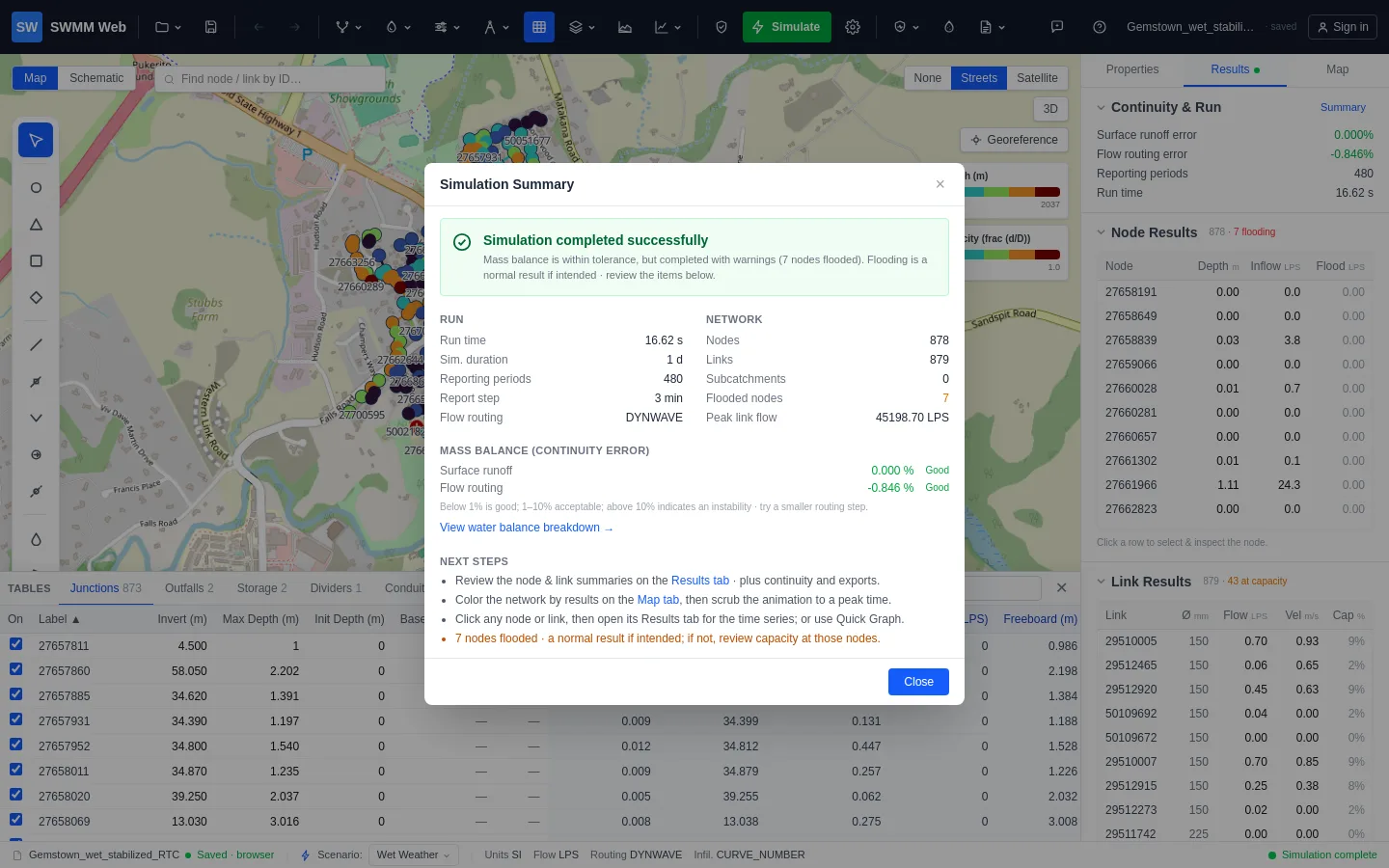
A summary opens automatically when the run finishes:
- Status - completed, completed with warnings, or failed.
- Continuity error for runoff and flow routing.
- Run statistics - duration, reporting periods, routing method.
- Network summary - element counts, how many nodes flooded, peak link flow.
- Engine messages - the warnings and errors SWMM itself raised.
Reopen it any time by clicking the run status at the right of the status bar, or with Summary in the Results tab.
Continuity error, and why it comes first
Section titled “Continuity error, and why it comes first”Continuity is mass balance: water in should equal water out plus what is stored. The percentage is the model telling you how much it failed to account for.
| Error | Verdict |
|---|---|
| under ~1 % | Good. Proceed. |
| 1 - 5 % | Acceptable for screening. Worth understanding. |
| over 5 % | Do not trust the results. |
When a run fails
Section titled “When a run fails”SWMM stops with a numbered error, and the app explains it in context. Common ones:
| Error | Meaning |
|---|---|
| 153 | Unit hydrograph response ratios invalid - RDII R values summing above 1. |
| 209 | An object references something that does not exist. |
| 211 | An invalid number in a section, such as a negative area. |
Run Validate and the Design check before assuming a failure is a bug. Most failed runs are model problems the app can name for you.
Excluding elements without deleting them
Section titled “Excluding elements without deleting them”In Flex Tables, untick On for any element to leave it out of the run. Useful for testing whether a pipe is really the bottleneck, without destroying anything.